Checkout this introductory series detailing data cleanup workflows with the Power Query in MS Excel.
Video 1: Introduction to Data Query – Standardize text formatting on select columns – Remove duplicate entries
Video 2: Formatting Phone Numbers – How to remove unwanted characters – How clean ‘null’ entries – How to split a column by character count – How to create a custom column with a formula that formats the phone number as (xxx) xxx-xxxx
Video 3 – Text Extraction with Conditional Columns – How to create a Conditional Column – Navigating the IF statement to set condition
Here is the general workflow I used to complete a recent data merge and cleanup project.
TASKs:
Merge data from 5 different data structures (Approximately 4Gb in 148 files)
Extract business related to commercial painting
Format data
Create consolidated Master file
Create separate files divided by State where business is located
Tools:
Python’s Pandas library
MS Office Visual Basic for Applications (VBA)
Workflow
Explore data structure – First we explore the structure of each data set. Below we can see that many of the column titles do not match. For example, for Company Name we have ‘COMPANY_NAME’, ‘NAME’, ‘Company’ and ‘Business Name’. Also as expected not all datasets contain the same type of information.
Header Data Source 1Header Data Source 2Header Data Source 3Header Data Source 4Header Data Source 5
2. Create Master Dataset – In order to merge all the data, a Master Dataset was engineered to collect each represented columns across all datasets and the appropriate items were mapped to the respective columns on the Master Dataset.
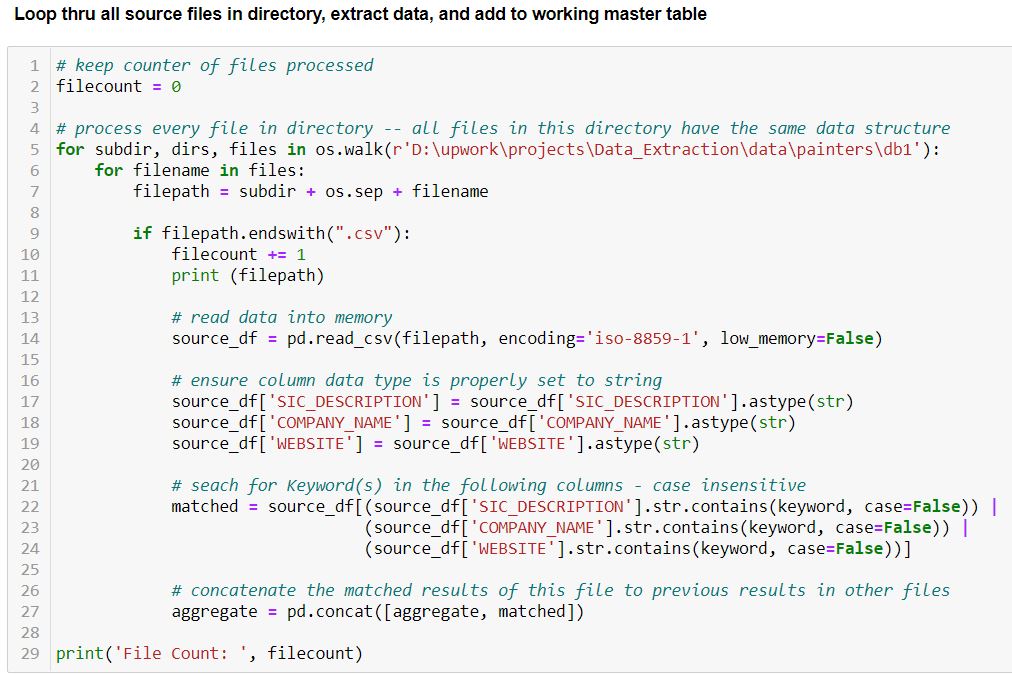
3. Define Top Level Filter and extract records – The following code looked for the term ‘paint’ in the columns ‘COMPANY_NAME’, ‘SIC_DESCRIPTION’, and ‘WEBSITE’. Records with a match were extracted and compiled.
Because each of the datasets had a unique structure, this code had to be tweaked for each file structure.
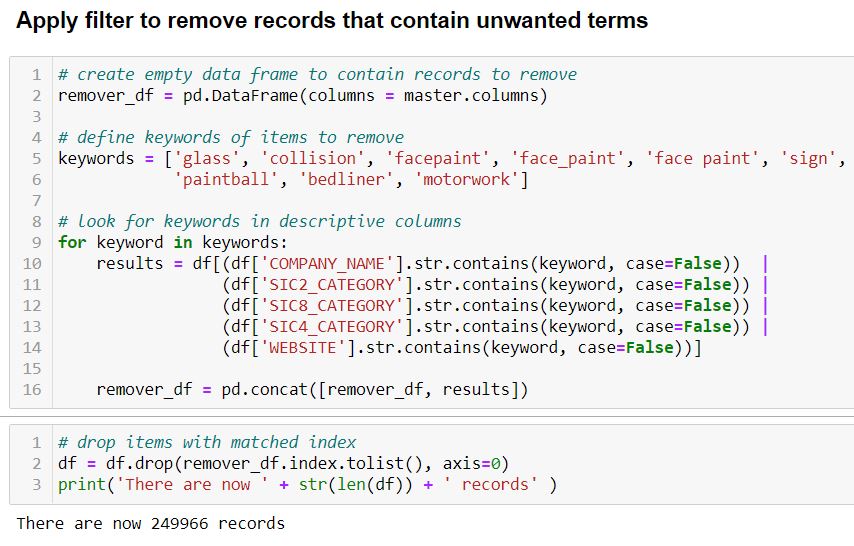
4. Apply second filter – A look at the resulting data indicates we still have many records that we do not want. As the client in interested in residential and commercial painting we do not need business that work on automobiles, face paint or paintball. We search and filter out those records.
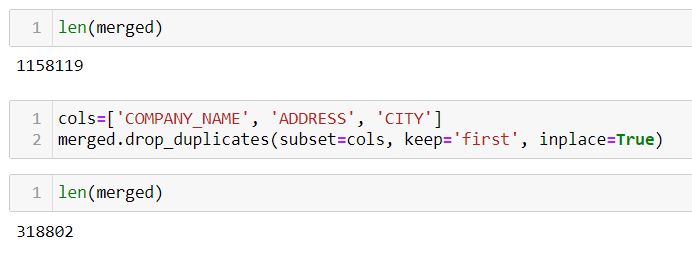
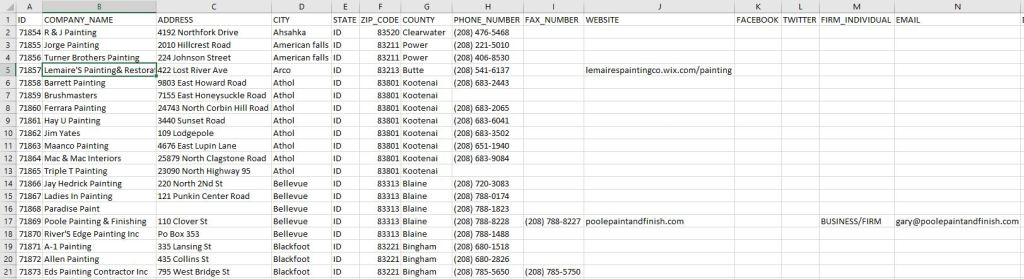
5. Drop duplicated business entries – We consider any business that have the same Company Name, Address, and city as being duplicated and we keep only the first reference to it in the data set. This brings the total record count from 1,158,119 to 318,802.
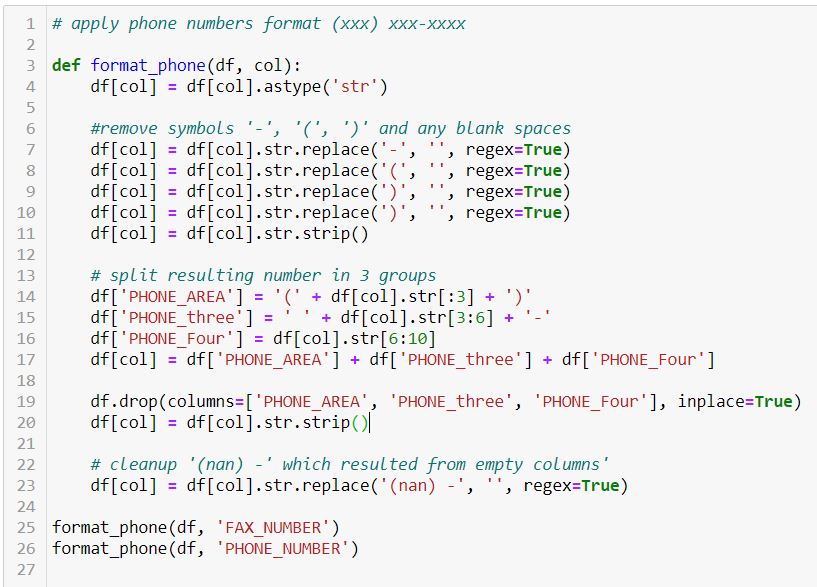
6. Format and Standardize entries – The phone and fax numbers contained mixed formats. Some numbers were entered without any format such as 14072332211, other formatted as (###) – ###- ####. The code applied first strips the entries to numbers only and then applies the (###) – ### – #### format.
Other text type entries were standardize.
7. With the data filtered and cleaned up a Master data file was created and well as a set of files divided by State.
This notebook shows the initial data cleanup workflow for a capstone project in fulfilment of Springboard’s Data Science Track Program.
The data was retrieved from the National Transportation and Safety Board website. The original data resides in a 20-table MS Access database. The pertinent information was exported to Coma-Separated Value (CSV) files utilizing Access’ query functions. This resulted in six distinct files. The data was then imported, analyzed, and cleaned utilizing Python Pandas methods and other libraries. Finally, a single merged file was exported ready for Exploratory Data Analysis (EDA).
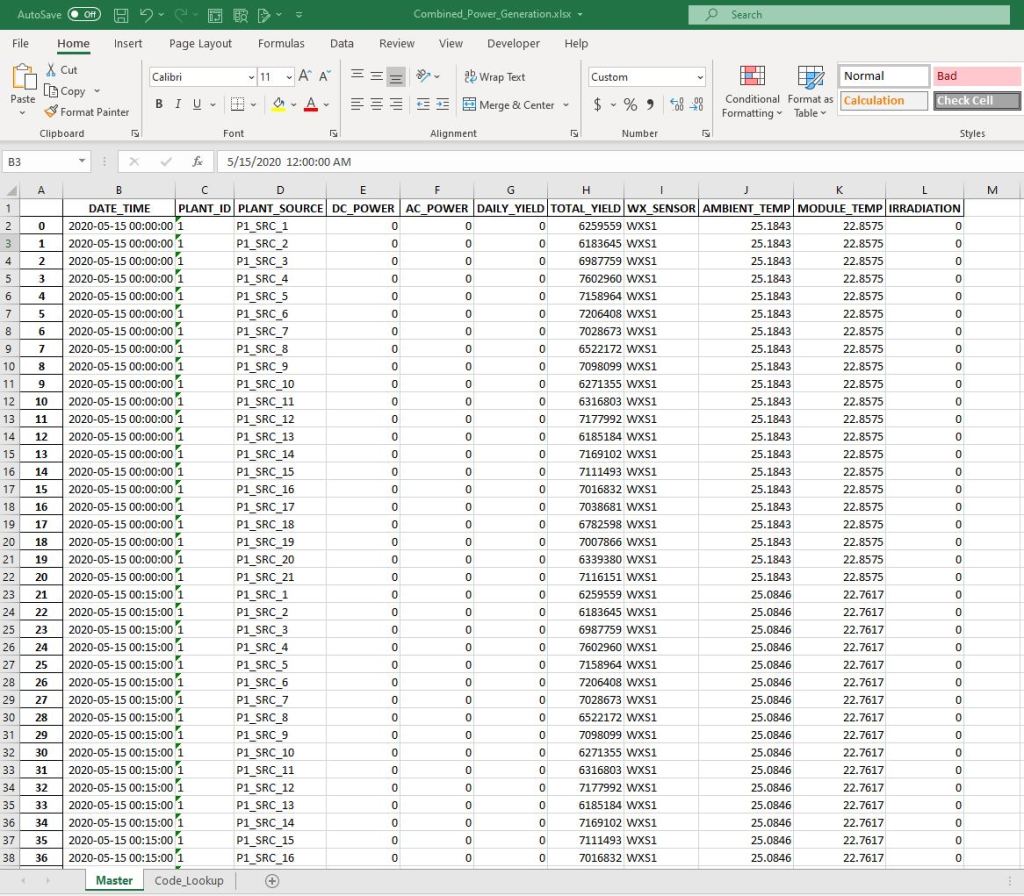
This notebook highlights the process of integrating data from four different data sources (Excel files) onto a master file. For efficiency, the data manipulation and cleanup is done with Python. After the processing is done, a master Excel file is exported.
** NOTE: The purpose of this post is to show a possible workflow for data cleanup and merging. Although the code is annotated to identify the general logic of each subsection, it is not intended to be a step-by-step tutorial.
Problem Identification
Customer would like to analize data on power generation from two solar power plants and their respective weather sensor logs.
The information recides in four separate Excel workbooks (two power generation files and two weather sensor files.)
Customer requests: — Consolidate data into one workbook — Manipulate data to facilitate comprehensibility —- Change Codes to easy-to-read labels —- Create Code dictionary for future reference — Conduct basic data cleanup
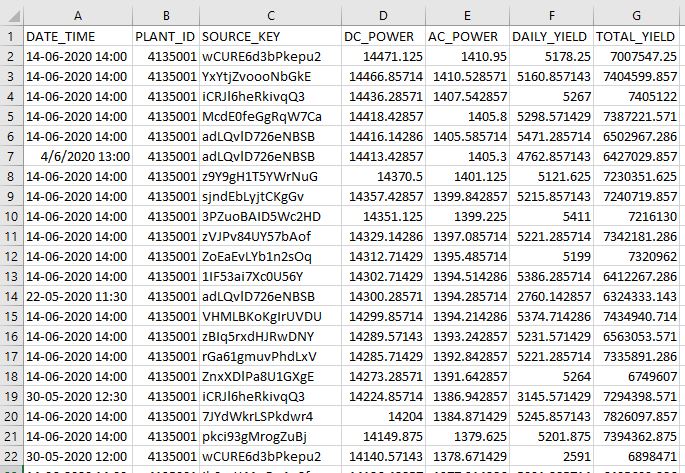
Plant 1 Power Generation Data – Sample (Plant 2 file has the same structure and data formats)
Plant 2 Weather Sensor Data (Plant 1 file has the same structure and data formats)
WORKFLOW:
1) Load Dependencies
import pandas as pd
import numpy as np
import datetime as dt
2) Import source Excel files
def import_xlx(file):
    '''import excel file into target dataframe'''
    dir = 'D:/Springboard/Projects/SolarPower/data/raw/'
    df = pd.read_excel(dir + file, dtype={'DATE_TIME':np.str})
    #import dates as string and manipulate in python
    return df
p1 = import_xlx('Plant_1_Generation_Data.xlsx')
p2 = import_xlx('Plant_2_Generation_Data.xlsx')
w1 = import_xlx('Plant_1_Weather_Sensor_Data.xlsx')
w2 = import_xlx('Plant_2_Weather_Sensor_Data.xlsx')
3) Analyze structure and content of powerplant files
p1.head(3)
DATE_TIME
PLANT_ID
SOURCE_KEY
DC_POWER
AC_POWER
DAILY_YIELD
TOTAL_YIELD
0
15-05-2020 00:00
4135001
1BY6WEcLGh8j5v7
0.0
0.0
0.0
6259559.0
1
15-05-2020 00:00
4135001
1IF53ai7Xc0U56Y
0.0
0.0
0.0
6183645.0
2
15-05-2020 00:00
4135001
3PZuoBAID5Wc2HD
0.0
0.0
0.0
6987759.0
Check to see if there are missing values anywhere in the dataset.
There are 22 different values for the source column. These are hard to read. We are going to map this values to something easier to read. Format will be ‘P1_SRC_X’ for Plant 1 SOURCE #.
We will store the key:value combination for later reference.
#create dictionary to hold source key mapping
p1_source = {}
idx=1
for source in sources:
    p1_source = 'P1_SRC_' + str(idx)
    idx += 1

#replace old codes with new values
p1['SOURCE_KEY'] = p1['SOURCE_KEY'].replace(p1_source)
The DATE_TIME values are been treated as strings. Perform data cleanup to standardize format and make the column a DATETIME type.
Separate DATES and TIMES into their own columns for easier manipulation, after clean-up bring back together into DATE_TIME column. ** This is needed because some date entries in the file have inconsistent formats. Removing the time components from them allow python logic to correctly identify and format the dates.
#Convert the Date column from string to date type
p1['DATE'] = pd.to_datetime(p1['DATE'])
p1.drop('DATE_TIME', axis = 1, inplace=True)

# add seconds for time standardization
p1['TIME'] = p1['TIME'] + ':00'
# convert str to time
p1['TIME'] = pd.to_datetime(p1['TIME'], format= '%H:%M:%S').dt.time
p1['DATE_TIME'] = ''

#Combine date + time into DATE_TIME column
for idx in range (len(p1)):
    p1.iloc[idx,8] = pd.datetime.combine(p1.iloc[idx,6],p1.iloc[idx,7])

# Reorder columns
p1.drop(['DATE','TIME'], axis=1, inplace=True)
p1 = p1[['DATE_TIME', 'PLANT_ID', 'SOURCE_KEY', 'DC_POWER', 'AC_POWER', 'DAILY_YIELD', 'TOTAL_YIELD']]

p1.iloc[idx,8] = pd.datetime.combine(p1.iloc[idx,6],p1.iloc[idx,7])

# Vizualize current status of dataset
p1.sample(5)
<ipython-input-27-4fbbd9230d85>:5: FutureWarning: The pandas.datetime class is deprecated and will be removed from pandas in a future version. Import from datetime module instead.
  p2.iloc[idx,8] = pd.datetime.combine(p2.iloc[idx,6],p2.iloc[idx,7])
for idx in range (len(w1)):
    w1.iloc[idx,7] =pd.datetime.combine(w1.iloc[idx,5],w1.iloc[idx,6])
w1.drop(['DATE','TIME'], axis=1, inplace=True)
w1= w1[['DATE_TIME', 'PLANT_ID', 'SOURCE_KEY', 'AMBIENT_TEMPERATURE', 'MODULE_TEMPERATURE', 'IRRADIATION']]
w1.head(3)
<ipython-input-36-f041425cb444>:2: FutureWarning: The pandas.datetime class is deprecated and will be removed from pandas in a future version. Import from datetime module instead.
  w1.iloc[idx,7] = pd.datetime.combine(w1.iloc[idx,5],w1.iloc[idx,6])
<ipython-input-43-399aca825677>:2: FutureWarning: The pandas.datetime class is deprecated and will be removed from pandas in a future version. Import from datetime module instead.
  w2.iloc[idx,7] = pd.datetime.combine(w2.iloc[idx,5], w2.iloc[idx,6])









 Birr-Data